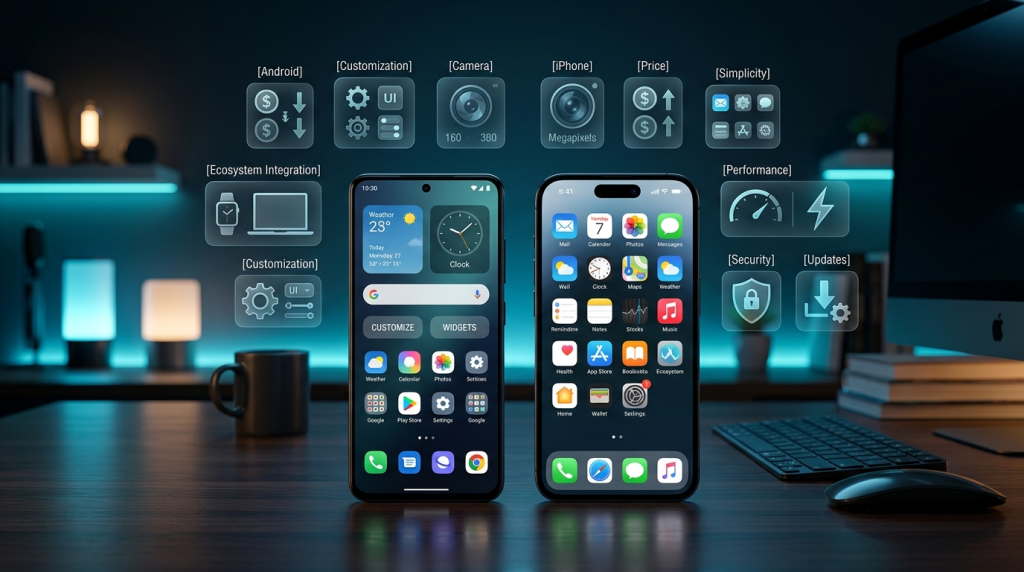
Adjusting default settings on an Android phone can improve performance, battery efficiency, and device responsiveness. System modifications such as enabling adaptive battery features, activating dark mode, turning off screen auto-rotation, and reducing animation scales help optimize resource usage and speed up user interface transitions.
To enhance privacy and security, users should configure settings like two-step verification, Google Play Protect, and Find My Device. Additionally, restricting background data usage, turning off location history, and changing default browsers and virtual assistants give users greater control over personal data.
Because “default” is just a polite way of saying “you’re stuck with this forever.”
Introduction
If your Android phone were a person, it would be that friend who never showers, leaves the fridge door open, and insists on using the same three‑month‑old password for everything. Luckily, you have the power to give your device a quick makeover without buying a new one. Below are ten settings that most users ignore, but changing them can make your phone faster, safer, and just a tad less obnoxious.
1.Enable “Smart Battery” (or “Battery Optimization”)
What it does: Prioritizes power for the apps you actually use.
Why care: Stop watching your battery drain faster than your motivation on a Monday morning.
How: Settings → Battery → Adaptive Battery (or Battery → Battery Optimization on older Android versions).
2.Turn Off “Auto‑Rotate” (or fine‑tune it)
What it does: Prevents the screen from rotating when you’re just trying to read a meme.
Why care: Saves a few milliseconds of CPU work and spares your neck from unnecessary twists.
How: Pull down the Quick Settings shade → Tap the rotation lock icon. For granular control, go to Settings → Display → Auto‑rotate screen and pick which apps may rotate.
3.Limit Background Data for Unnecessary Apps
What it does: Stops apps from chewing up your data while you’re asleep.
Why care: Avoid surprise overage charges and keep your data plan from resembling a black hole.
How: Settings → Network & Internet → Data usage → App data usage → Choose app → Disable “Background data.”
4.Activate “Google Play Protect”
What it does: Scans apps for malware, even those sideloaded from obscure corners of the internet.
Why care: Because the only thing you want to be “sideloaded” is your favorite pizza.
How: Settings → Security → Google Play Protect → Scan device for security threats.
5.Switch to “Dark Mode” (System‑wide)
What it does: Uses a darker color palette, saving energy on OLED screens and reducing eye strain.
Why care: Your eyes deserve a break, and your battery will thank you.
How: Settings → Display → Dark theme → Turn on.
6.Reduce “Animations” Scale
What it does: Speeds up UI transitions by scaling down or disabling animations.
Why care: Because waiting for a ripple effect feels like watching paint dry.
How: Enable Developer options (tap “Build number” 7 times), then go to Settings → System → Developer options → Window animation scale, Transition animation scale, Animator duration scale → set to 0.5x or Off.
7.Set Up “Find My Device”
What it does: Lets you locate, ring, lock, or erase a lost phone remotely.
Why care: Losing a phone is the digital equivalent of misplacing your keys—except the keys are worth $1,000.
How: Settings → Security → Find My Device → Turn on.
8.Disable “Location History”
What it does: Stops Google from logging every coffee shop you’ve ever entered.
Why care: Privacy is not a luxury; it’s a basic human right (and a good excuse to avoid targeted ads).
How: Settings → Google → Location → Location History → Turn off.
9.Change Default “Browser” and “Assistant”
What it does: Lets you pick a lighter browser (e.g., Firefox, Brave) or a more privacy‑focused assistant.
Why care: Chrome and Google Assistant are great—if you enjoy being tracked like a mall Santa.
How: Settings → Apps → Default apps → Browser/Assistant → Choose your champion.
10.Enable “Two‑Step Verification” for Google Account
What it does: Adds an extra layer of security beyond your password.
Why care: Because “password123” is not a password, it’s a cry for help.
How: Visit myaccount.google.com/security → “2-Step Verification” → Follow the prompts (SMS, authenticator app, or hardware key).
Conclusion
Your Android device is a powerful tool, not a stubborn roommate that refuses to change. By tweaking these ten settings, you’ll enjoy a smoother, safer, and slightly less smug experience. Think of it as a digital spring cleaning—except you won’t have to vacuum under the couch.
Call to Action: Open your Settings now, make at least three of these changes today, and feel the difference. Your battery, privacy, and sanity will thank you.
Stay witty, stay cynical, and keep those pixels in line.
Written with a lightly cynical flair, because why not make tech advice a little snarkier?