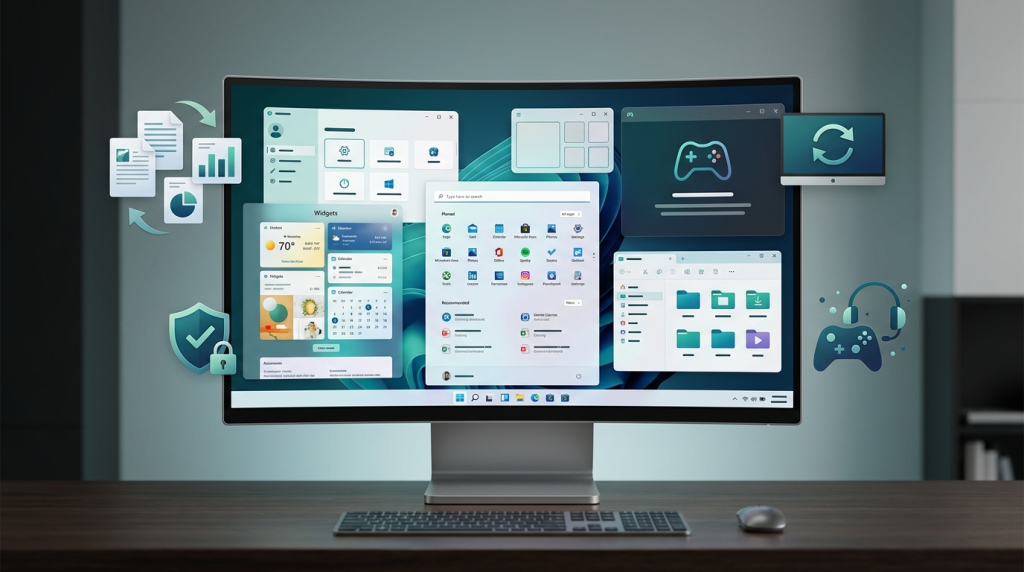
Windows 11 updates the Windows operating system with a redesigned interface featuring centered taskbar icons, rounded corners, and simplified menus. It enforces stricter hardware requirements than Windows 10, including mandatory TPM 2.0 and Secure Boot support, which limits compatibility on older devices.
The newer operating system offers enhanced security defaults, improved multitasking layouts, and slight performance boosts in memory management and battery life. While adding features like Android app integration, core software compatibility remains similar to Windows 10 for most standard applications.
If you’ve ever felt that your operating system was a little too… “the same old thing,” you’re not alone. Microsoft decided it was time to sprinkle a little design‑drama on the familiar Windows stage. Let’s break down the curtain and see whether Windows 11 is a genuine upgrade or just a glossy re‑skin of Windows 10.
1. Aesthetic Overhaul (Because Looks Matter)
| Feature | Windows 10 | Windows 11 |
|---|---|---|
| Start Menu | Rectangular tiles, live updates, “Metro” nostalgia. | Center‑aligned, simplified icons, no live tiles (good riddance). |
| Taskbar | Left‑aligned by default, customizable. | Centered icons, rounded corners, new widgets button. |
| Window Corners | Sharp, angular. | Subtly rounded—Microsoft’s answer to “soft‑core design.” |
| Themes & Sounds | Classic Windows sounds, basic dark/light modes. | New “Mica” material, fresh sounds (including a calming “wind chime” for the lock screen). |
Bottom line: If you’ve ever wanted your desktop to look like a modern smartphone, Windows 11 delivers—though you can always revert to classic layouts with a few registry tweaks (if you enjoy living on the edge).
2. System Requirements (The “Are You Worthy?” Test)
| Requirement | Windows 10 | Windows 11 |
|---|---|---|
| CPU | 1 GHz + any 64‑bit processor (including older Intel Core 2, AMD Athlon 64) | 1 GHz + 2 cores, 64‑bit only, must support Secure Boot and TPM 2.0 |
| RAM | 1 GB (32‑bit) / 2 GB (64‑bit) | 4 GB |
| Storage | 16 GB (32‑bit) / 20 GB (64-bit) | 64 GB |
| Graphics | DirectX 9, WDDM 1.0 driver | DirectX 12, WDDM 2.0 driver |
What this means: If you’re still clinging to a 2012 laptop, Windows 10 will happily stay in your life. Windows 11 politely asks you to upgrade your hardware—or at least your motherboard’s firmware.
3. Performance & Efficiency (Does It Actually Run Faster?)
- Improved Memory Management – Windows 11’s “Smart Memory” throttles background apps more aggressively, giving foreground tasks a modest boost.
- Snap Layouts & Groups – Multitasking feels smoother because the OS remembers where you placed windows and restores them after a reboot.
- Gaming Enhancements – DirectStorage (still rolling out) promises faster load times on NVMe SSDs, while Auto HDR adds extra color depth to older titles.
- Battery Life – Laptops with newer Intel CPUs report ~10 % longer battery endurance under typical workloads.
Reality check: The performance gains are real but not earth‑shattering. If you’re a power user with a high‑end rig, the difference may be barely perceptible.
4. Security Improvements (Because “Secure” is a Marketing Word)
| Feature | Windows 10 | Windows 11 |
|---|---|---|
| TPM Requirement | Optional (recommended) | Mandatory TPM 2.0 |
| Secure Boot | Optional | Mandatory on new hardware |
| Windows Hello | Fingerprint, facial recognition (if hardware present) | Same, but now integrated with hardware‑level isolation |
| Virtualization‑Based Security (VBS) | Available | Enabled by default on many builds |
| Microsoft Defender SmartScreen | Good | Enhanced phishing & malware detection, tighter integration with Microsoft Edge |
Takeaway: If you enjoy the idea of your PC being a fortified bunker, Windows 11 forces you into a more secure posture—provided you actually have the required hardware.
5. Compatibility & Software Ecosystem
- Legacy Applications – Most Win32 apps run fine on both OSes. Windows 11 drops support for 32‑bit (ARM) apps on ARM‑based devices, which could bite developers.
- Android Apps – Windows 11 introduces the Amazon Appstore (and sideloading) for Android, a novelty that feels more like a gimmick than a productivity booster.
- Microsoft Store Redesign – A cleaner UI and support for Win32 installers, but still a sandbox for the most part.
Bottom line: If your workflow relies on obscure or ancient software, Windows 10 remains the safer bet—until compatibility patches roll out for Windows 11.
6. User Experience Tweaks (The “Little Things”)
- Widgets Panel – A news‑feed‑style sidebar that can be toggled with a click. Some find it useful; others consider it a digital billboard.
- Integrated Microsoft Teams – Chat icon sits on the taskbar by default. Great for remote work, terrible for those who hate being reminded of Zoom fatigue.
- Settings App Overhaul – Fewer nested menus, but some classic control‑panel options are still hiding in the shadows.
- File Explorer – Subtle UI refinements and a new “Tabs” preview (still in preview mode as of 2024).
In short: The changes feel incremental, but they collectively nudge you toward a more “cloud‑first” mindset.
7. Pricing & Licensing (The Money Part)
Both Windows 10 and Windows 11 are offered under the same licensing models: OEM, retail, and volume. Microsoft’s free‑upgrade path from Windows 10 to Windows 11 ended in 2025, so new builds will need a fresh license or a Windows 11‑compatible device out of the box.
Conclusion: To Upgrade or Not to Upgrade?
Windows 11 is the polished sibling: slick UI, mandatory security hardware, modest performance bumps, and a few novelty features that may or may not fit your workflow. Windows 10, meanwhile, is the dependable elder who still gets the job done on older machines and remains fully supported until October 2025.
Bottom line: If your hardware already meets the TPM 2.0 + Secure Boot checklist, and you appreciate a cleaner aesthetic and the latest security sandbox, go ahead and make the jump. If you’re a budget‑conscious user, a lover of legacy apps, or simply don’t feel the need for rounded corners, staying on Windows 10 for another year (or two) is perfectly respectable.
So, what will you do? Keep your trusty Windows 10 until the support sunset, or jump into the shiny new world of Windows 11 and hope those rounded corners actually make you more productive. The choice is yours—just don’t blame us when the next Windows release shows up with even more “mandatory hardware” requirements.
Feel empowered? Share this article, test the waters with a Windows 11 Insider build, or simply enjoy the peace of mind that your OS is still doing its job—no matter which version you run.