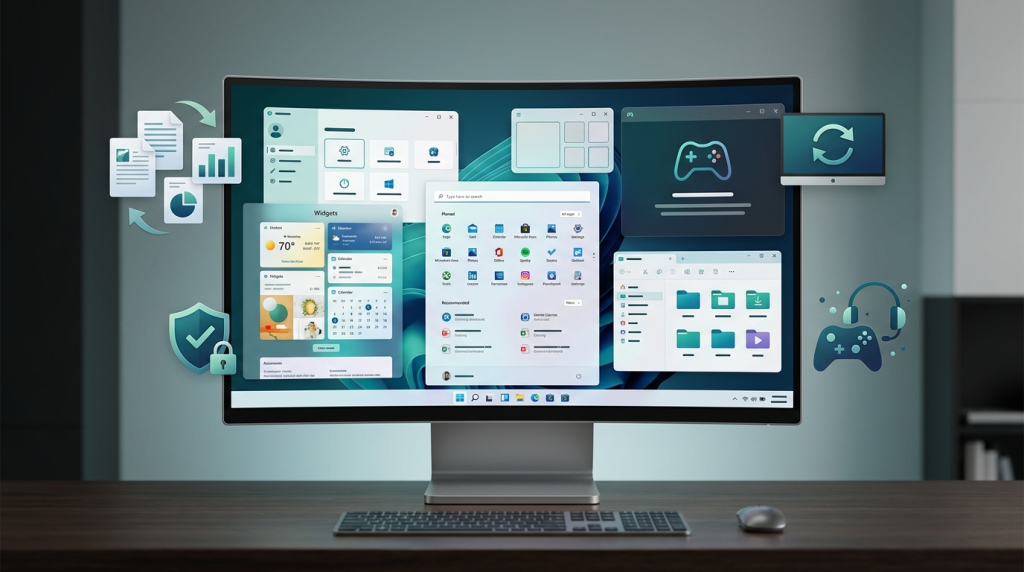
Windows 11 updates the Windows 10 interface with a centered Start menu, simplified taskbar, and enhanced window snapping layouts. However, it imposes stricter hardware requirements, including TPM 2.0 and newer processors. On compatible devices, these changes offer minor boot speed and general performance improvements.
The updated operating system introduces native gaming features like DirectStorage and Auto HDR, alongside enforced hardware-rooted security. It drops support for 32-bit drivers, making Windows 10 a preferred option for legacy software, older peripherals, and enterprise environments requiring traditional device management.
Cue the nostalgic sighs, the “I‑miss‑the‑Start‑Menu‑as‑it‑used‑to-be” groans, and the inevitable debate over whether Microsoft finally grew up or just got a fresh paint job.
Introduction
If you’ve been living under a rock—or, more plausibly, a corporate IT policy—you may have noticed a new icon on the desktop: a centered, rounded‑corner window that looks like it was designed by a minimalist who also loves pastel gradients. That’s Windows 11, the latest attempt by Microsoft to make us feel both modern and confused at the same time. But is it really a groundbreaking upgrade over the sturdy, slightly grayer Windows 10, or just a fancy facelift with a few extra tricks up its sleeve? Let’s dissect the two operating systems with a healthy dose of curiosity and a dash of light‑hearted cynicism.
Main Differences
1. User Interface (UI) & Aesthetics
| Feature | Windows 10 | Windows 11 |
|---|---|---|
| Start Menu | Left‑aligned, live tiles, “All apps” list. | Centered, simplified grid, no live tiles (they were so 2020). |
| Taskbar | Fully customizable, drag‑and‑drop, right‑click “Toolbars.” | Centered icons, limited customization, no drag‑and‑drop (because why would you want that?). |
| Rounded Corners & Themes | Sharp edges, “classic” look. | Rounded corners everywhere, translucent Mica effect, new theme palette. |
| Snap Layouts | Basic snapping (half‑screen, quarter‑screen). | Advanced Snap Layouts and Snap Groups with visual hints. |
Bottom line: Windows 11 looks like Windows 10 after a spa day—smooth, rounded, and trying way too hard to be “modern.” If you love the familiar feel of Windows 10’s Start menu, you’ll have to adjust to a new layout that assumes you actually use the taskbar.
2. Performance & System Requirements
- Hardware Baseline
- Windows 10: Runs on virtually any PC made in the last decade.
- Windows 11: Demands a TPM 2.0 chip, Secure Boot, and a fairly recent CPU (8th‑gen Intel or Ryzen 2000+). In practice, older laptops get politely rejected.
- Speed & Efficiency
- Boot Times: Marginally faster on Windows 11 thanks to better thread scheduling and a refined kernel.
- Battery Life: Slight improvements on laptops with newer Intel CPUs, but the difference is often drowned out by the new UI’s extra visual effects.
Takeaway: If your machine is already Windows 10‑ready, you’ll probably see only a modest performance bump—if any—when you upgrade. If you’re stuck with older hardware, you’ll be left in the digital stone age.
3. Gaming
| Aspect | Windows 10 | Windows 11 |
|---|---|---|
| DirectStorage | Supported via Xbox app, but not native. | Native support, faster asset loading on compatible SSDs. |
| Auto HDR | Limited to Xbox consoles, not PC. | Auto HDR enabled for many DirectX 11/12 games. |
| Xbox Game Bar | Same feature set, but less integrated. | Deeper integration, quicker access to Xbox app. |
Microsoft is basically telling gamers, “We’ve finally caught up to the console, now stop complaining about PC lag.” If you have an RTX‑3080 and a PCIe 4.0 SSD, you’ll notice smoother load times; otherwise, the differences are subtle.
4. Security
- Windows 10: Continues to receive regular patches, but its baseline security relies on optional features like Windows Hello and BitLocker.
- Windows 11: Enforces TPM 2.0 and Secure Boot, making it harder for ransomware to gain a foothold out of the box. Microsoft also bundles Microsoft Pluton (on select devices) for hardware‑rooted security.
Result: Windows 11 is a little more “hardened,” but the real security depends on how you configure updates, passwords, and third‑party software.
5. Compatibility & Software Ecosystem
- Legacy Apps: Both OSes run 32‑bit apps, but Windows 11 drops support for 32‑bit drivers, which can bite you if you rely on old hardware (think older USB dongles or specialized scanners).
- Microsoft Store: Revamped in Windows 11 with a more curated selection, but still a work in progress. Windows 10’s store feels like a dusty attic; Windows 11’s is a sleek boutique—still limited, but prettier.
6. Enterprise & Management
- Windows 10: Mature Group Policy and Windows Update for Business (WUfB) tools; widely deployed across corporate networks.
- Windows 11: Adds Windows 365 integration, new Microsoft Endpoint Manager capabilities, and a focus on “modern management.” The learning curve for IT admins is comparable to teaching cats to use a touchscreen.
7. Pricing & Licensing
Both OSes are free upgrades for eligible Windows 10 users (as long as your hardware qualifies). For new PCs, manufacturers typically ship Windows 11 pre‑installed, making the “upgrade cost” a non‑issue for most consumers.
Real‑World Examples
- The College Student – Anna runs a 2016 laptop with an Intel i5‑6300U. She can’t install Windows 11 because of the TPM requirement. She sticks with Windows 10, which still receives security updates until 2025, and she’s content.
- The Power User – Mark built a 2022 gaming rig with an RTX 4070 and a 2 TB NVMe SSD. After upgrading to Windows 11, he notices game load times drop by ~15 % thanks to DirectStorage, and the new Snap Layouts help him multitask while streaming.
- The Corporate IT Manager – Sofia oversees a fleet of 5,000 devices. She delays the Windows 11 rollout until the TPM 2.0 compliance checklists are finalized, opting to stay on Windows 10 LTSB (Long‑Term Servicing Branch) to avoid the headache of driver rewrites.
Conclusion
Windows 11 isn’t a radical reinvention; it’s a polished, security‑first, slightly more “mobile‑app‑like” version of Windows 10. If you enjoy fresh UI trends, have modern hardware, and want out‑of‑the‑box gaming niceties, the upgrade feels like a gentle nudge forward. If you value raw compatibility, a familiar workflow, and the ability to keep older peripherals alive, Windows 10 remains a perfectly competent workhorse—especially given its extended support timeline.
Bottom line: Upgrade if you have the hardware and the patience to tweak settings; otherwise, stay put and enjoy the fact that Microsoft will keep patching Windows 10 for a few more years.
Think of it this way: Windows 11 is the sleek new smartphone you pretend you need, while Windows 10 is the reliable old flip phone that still makes calls.
Call to action: Test drive Windows 11 on a spare machine or a virtual environment. If the new UI doesn’t drive you to the brink of a tech‑induced existential crisis, go ahead and make the switch—otherwise, keep the comfort of Windows 10 and let the future unfold at its own (slightly slower) pace.
Disclaimer: This article reflects the state of both operating systems as of September 2026. Features may evolve, and Microsoft’s marketing team will undoubtedly spin any perceived shortcomings into “innovative design choices.”